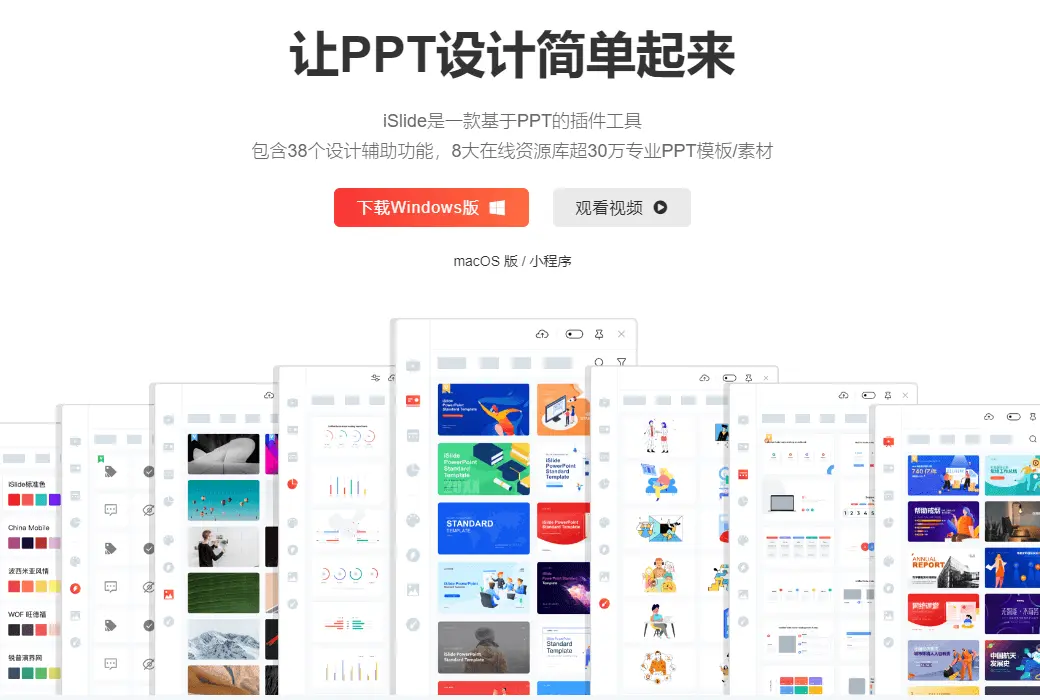
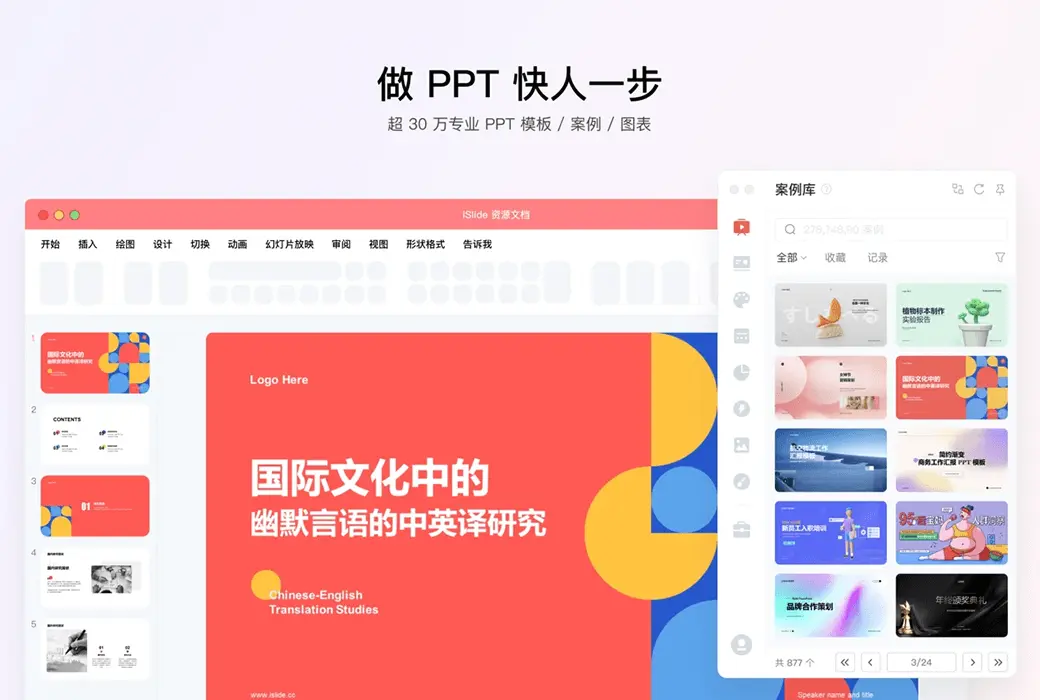
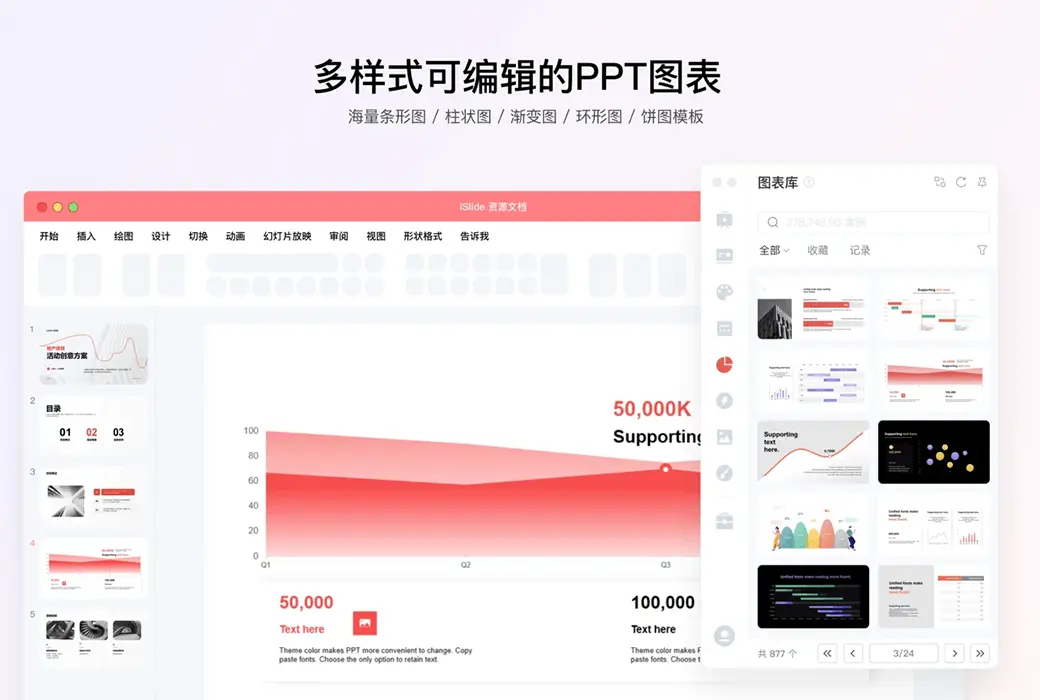
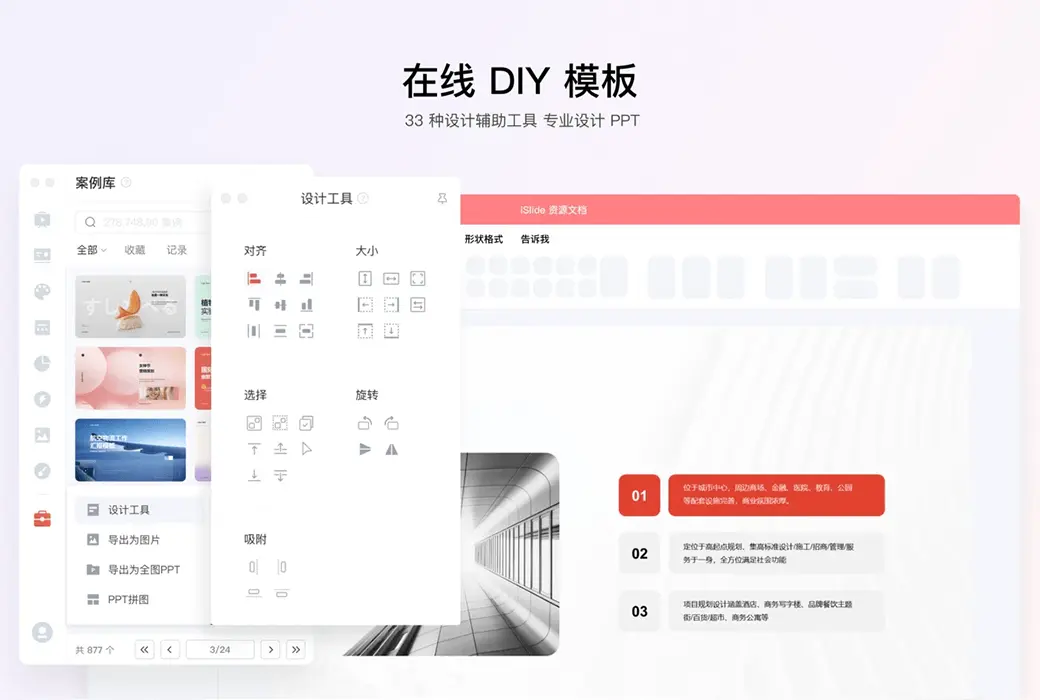
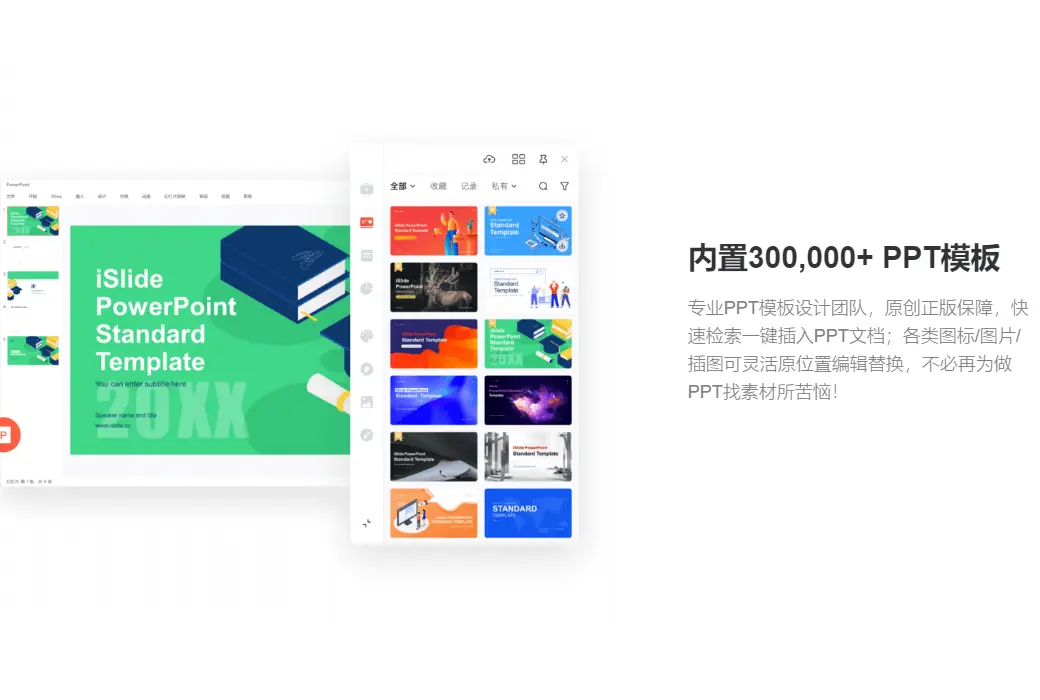
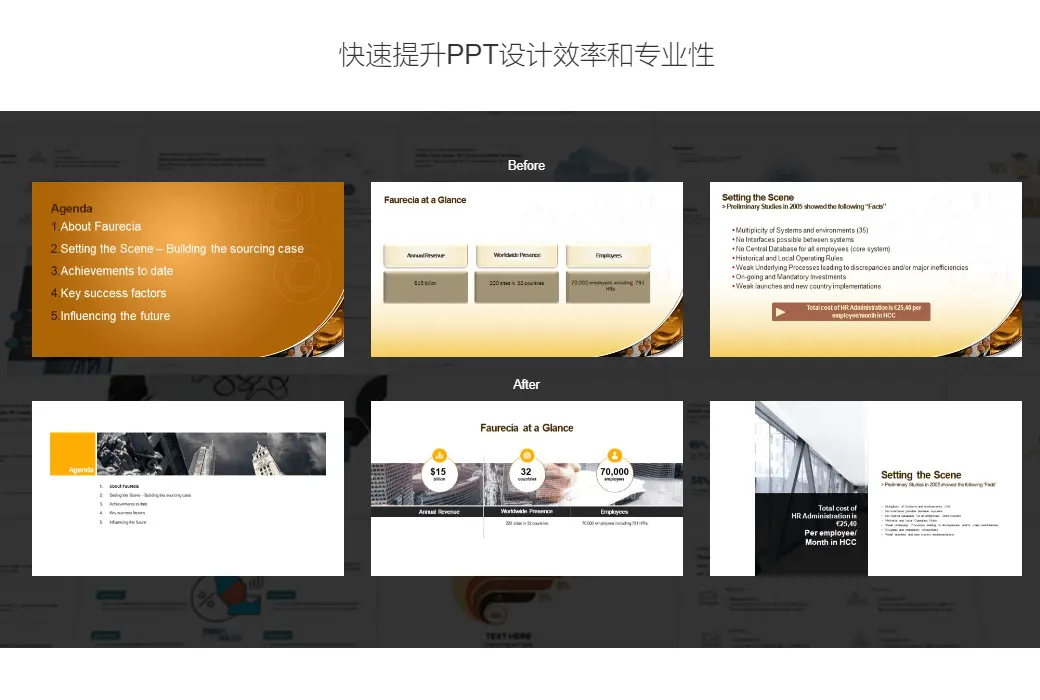
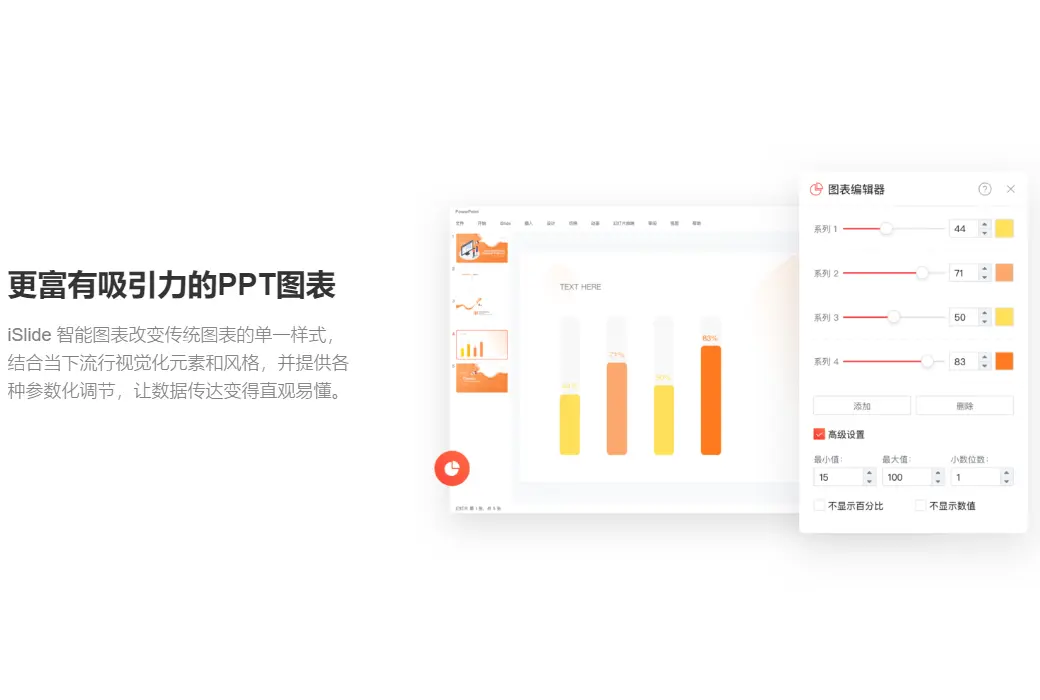
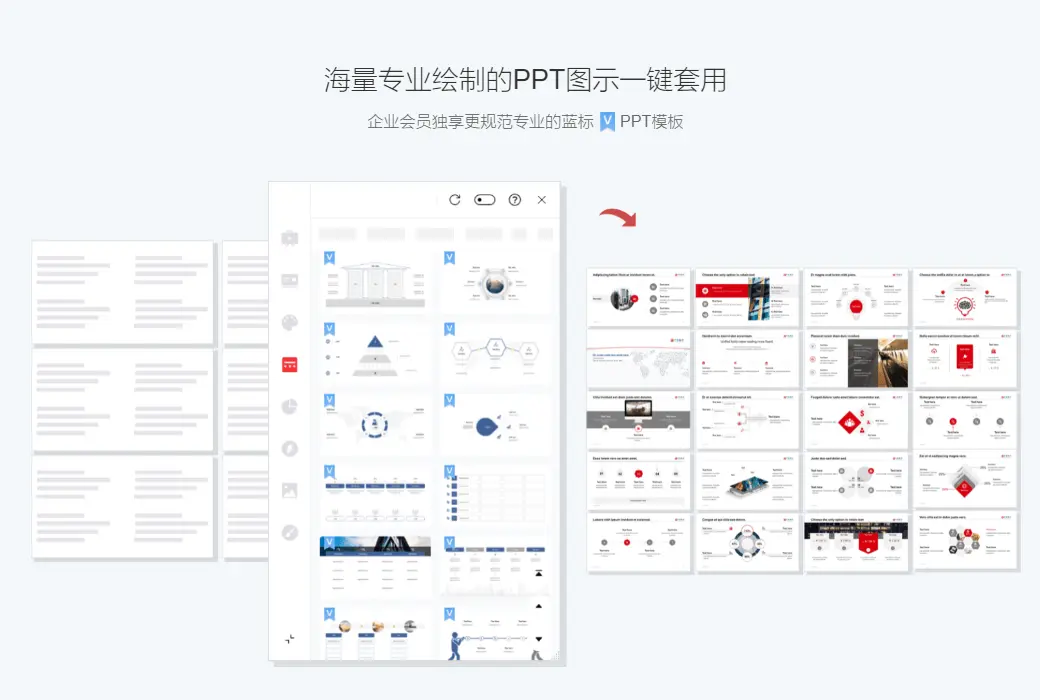
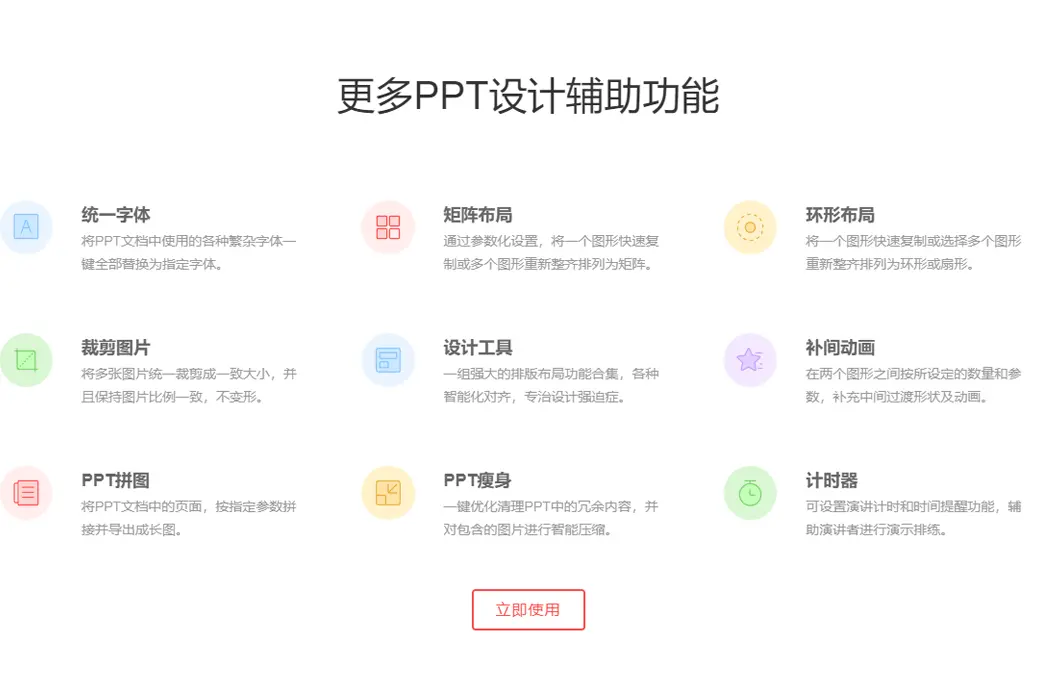
ISlide is an efficient plugin designed for PowerPoint, with three words to describe it: "simple," "efficient," and "fast. ISlide almost covers the difficult usage scenarios of the vast majority of users (excluding advanced PPT players), providing users with a large number of optional solutions to efficiently handle PPT design issues. ISlide provides more than ten quick functions, and the processing speed is very ideal, which can significantly reduce the cost of PPT production.
Diverse functions and simple operation
The core of iSlide is actually to complete a complex operation in the simplest way possible. Among the many functions, no operation is too complex, in order to save more production and design time, improve your work efficiency, and showcase your unique slides.
One click optimization
When using the same slide between multiple devices, there may be confusion in formatting and missing fonts. To achieve a good viewing effect, we need to repeatedly adjust our paragraphs and fonts. And this adjustment process is not simple, it requires us to adjust each page one by one, which is undoubtedly a great waste of time. ISlide provides us with unified fonts, standardized paragraph functions, and thoughtful extension options such as "select all slides" and "include hidden pages".
Efficient layout
Images are one of the indispensable elements in PPT, and sometimes they can occupy multiple pages. Therefore, how to elegantly layout image materials of different sizes is a headache for us. The best solution is "rectangular layout" and "image filling". iSlide provides the function of quickly laying out background rectangular blocks, which can quickly build, layout, and merge rectangular blocks.
And for rectangles, we can also make minor adjustments, such as quantity, spacing, and offset angle. As long as you can think of any adjustments, iSlide is ready for you. How to layout a high grid background layout depends on your aesthetics! After completing the background rectangle layout, we only need to use PowerPoint's built-in image filling function to complete the image layout.
The rectangular layout is just a small point of intelligent layout. In addition to the rectangular layout, there is also a circular layout. Combined with PowerPoint's built-in features, it can take you to play with illustrations in various ways. Of course, you can also choose its built-in illustration library.
Universal Material Library
When making PPTs before, there was always the trouble of adding an icon next to some general words, because this visual expression is the key to enhancing the persuasiveness. But I often struggled to find suitable high-definition transparent vector icons until I encountered iconfont.
However, every time the pages switch back and forth, the download button is constantly clicked, and the drag and drop operation is repeatedly executed, it is still very frustrating, especially after the new Keynote provides a large number of icons, the defect of PowerPoint becomes even more obvious. ISlide provides a rich icon library in the PowerPoint interface, with nearly two thousand pages of icons for you to choose from. Although the icons inside may not be as exquisite as the ones you are looking for, this set of icons that can be modified in size and color with a consistent style can save you the time and complexity of searching and adding.